Every time I see dev tunnels mentioned, it’s in the context of testing webhooks - making a local endpoint reachable so that a third-party service can call it. That’s a valid use case, and it’s probably what most people reach for ngrok for.
But I’ve been using dev tunnels for something far more mundane, and honestly more useful day-to-day: just showing a colleague what I’m working on.
The Scenario
You’re in a pull request or a design review. You’ve built something locally - a new component, a UI change, a new endpoint - and the easiest way to explain it is to show it. The problem is it’s running on localhost:5142 on your machine. Your colleague is in a different office, working from home, or just on a different network.
Options:
- Deploy to a dev or staging environment just to share a work-in-progress
- Screen share (fine, but clunky if they want to interact with it)
- Push to a branch, have them pull it, and hope their environment is set up the same way
Or you could just give them a URL.
What Dev Tunnels Actually Does
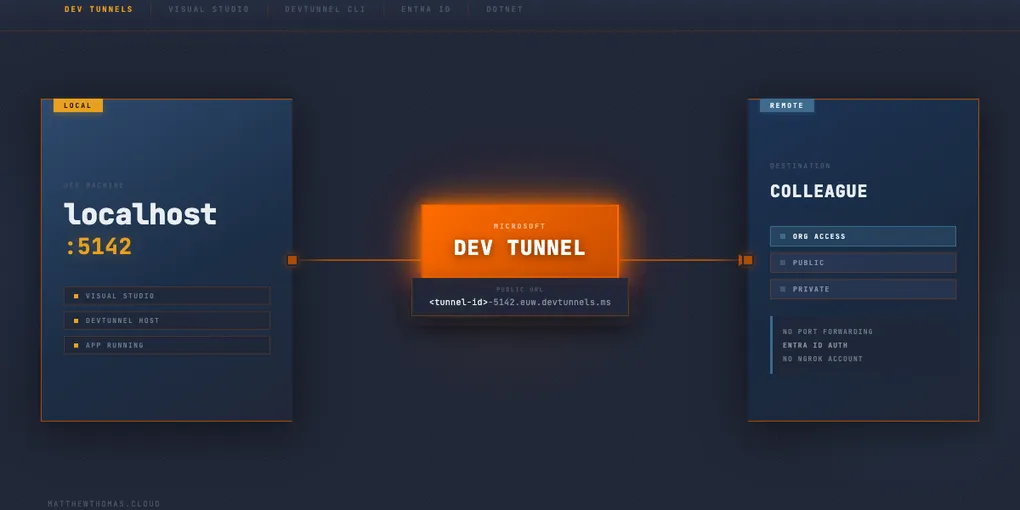
Dev tunnels, built into Visual Studio (and available via the devtunnel CLI), creates a publicly accessible URL that proxies traffic to your local machine. You can set authentication policies, choose between temporary and persistent tunnels, and - crucially - share access with specific people.
Setting one up in Visual Studio is a few clicks. Under the debug profile dropdown, you’ll find a “Dev Tunnels” option. Create a new tunnel, set the access to “Organisation” or “Public”, and that’s it. When you run the app, it’s reachable via the tunnel URL - not just on your machine.
https://<tunnel-id>.euw.devtunnels.msIf you’ve set it to organisation access, anyone signed in with the same Entra ID tenant can open it - no credentials to share, no port forwarding, no ngrok account needed. Worth noting: this only works properly with work/school accounts. If you’re signed into Visual Studio with a personal Microsoft account, selecting Organisation falls back to Private.
Why This Is More Useful Than It Sounds
The webhook use case is real, but it’s also niche - most developers aren’t spending a lot of time wiring up local endpoints to external services. The “show a colleague” use case happens constantly.
I’ve used it for:
- Sharing a UI change before raising a PR to get early feedback
- Letting a colleague test a new API endpoint against their own client code, rather than waiting for a deploy
- Demoing something to a stakeholder without spinning up a full environment
It’s the kind of thing where you’d previously just think “I’ll deploy it to dev and send the link” - which takes time, may clobber someone else’s work in progress, and adds friction. With a tunnel, you just run it and share the URL.
From the CLI
If you’d rather not go through the Visual Studio UI, the devtunnel CLI does the same thing in three commands. Install it via winget if you haven’t already:
winget install Microsoft.devtunnelLog in once:
devtunnel user loginThen create a persistent tunnel, open the port, and start hosting:
devtunnel create my-tunnel --tenant
devtunnel port create my-tunnel -p 5142 --protocol https
devtunnel host my-tunnel
The --tenant flag on create sets organisation-level access - anyone in your Entra ID tenant can connect. When host starts, you’ll get the URL in the output:
Hosting port: 5142
Connect via browser: https://<tunnel-id>-5142.uks1.devtunnels.ms
That’s the URL you share. Your app still runs locally on localhost:5142 - the tunnel just proxies traffic to it.
The port (
5142here) is whatever your app is actually listening on - check yourlaunchSettings.jsonor startup output if you’re not sure.
A Few Things to Know
It’s not permanent. Temporary tunnels close when you stop the app. Persistent tunnels survive restarts but are still tied to your machine being available. This isn’t a substitute for a real environment - it’s a quick sharing mechanism.
Authentication is configurable. The default for new tunnels is “Private” (just you). You’ll want to change this to “Organisation” for most team scenarios - this restricts access to accounts in the same Entra ID tenant, which is ideal for internal sharing. “Public” skips authentication entirely, so use that with caution. One gotcha: Organisation access requires a work or school account. If your Visual Studio account is a personal Microsoft account, Organisation behaves identically to Private.
The CLI is more flexible. If you’re not in Visual Studio, devtunnel works from the command line and can tunnel to any local port, not just web apps. Useful if you’re working with .NET Aspire, Vite, or anything else.
It’s free. At least for standard usage - Microsoft hasn’t changed that yet.
Not a Replacement for Proper Environments
To be clear: dev tunnels aren’t a reason to skip setting up proper shared dev or staging environments. If you’re regularly needing to share work-in-progress externally, a deployment pipeline to a shared environment is still the right answer.
But for quick internal feedback, a PR review, or a five-minute demo - tunnels are genuinely the lowest-friction option I’ve found. It’s one of those tools that was hiding in plain sight in Visual Studio and I underused for a long time because I mentally filed it under “webhook testing”.
If you haven’t tried it for the simpler case, it’s worth knowing it’s there.