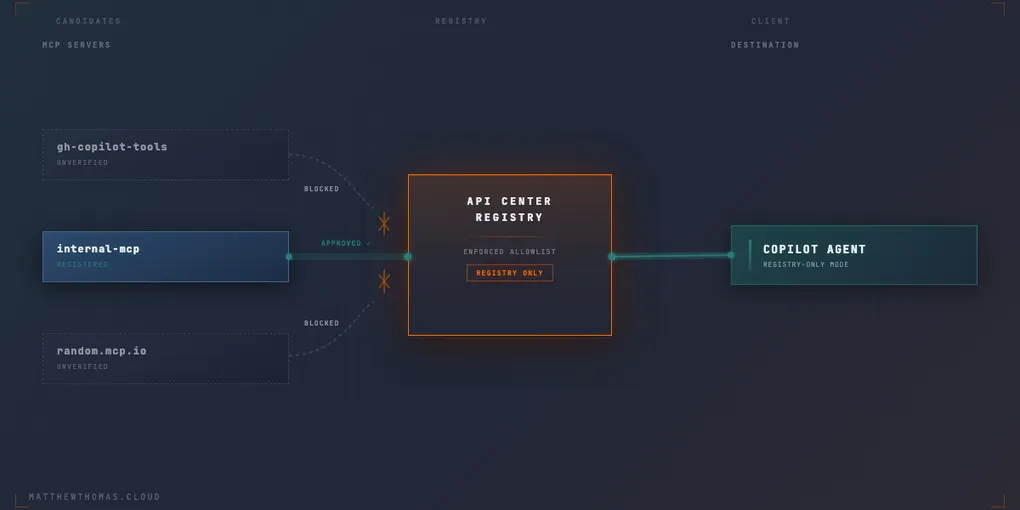
I’ve written before about hosting MCP servers in .NET, and building them was never really the hard part. The hard part came after, once GitHub Copilot’s agent mode meant a developer could take any MCP server URL they found and just point their agent at it. No review, no visibility, nothing stopping them.
An MCP server isn’t a link or a dependency you can eyeball in a PR. It’s something you hand your coding agent and let it call, on your behalf, with whatever context and credentials that session has. Get comfortable connecting to unreviewed ones and you’ve quietly opened up prompt injection from whatever that server chooses to return, and arbitrary code execution from whatever package it happens to pull in. That’s the actual reason we ended up locking MCP access down to an approved list on GitHub Enterprise, not tidiness, risk.
Why “just be sensible” doesn’t hold
The instinct is to handle this with a policy: tell people to only use servers the team has looked at, keep a list somewhere, move on. It doesn’t last, because nothing is actually checking. Copilot doesn’t know your list exists. It’ll connect to whatever a developer types into agent mode, reviewed or not, and the first anyone finds out is after the fact, if at all. And let’s be honest, generally it won’t be a malicious action from the developer. They’re trying to get some work done or try a new tool they’ve seen. 80% of the time it’s a mistake.
What you actually need is something the client itself is forced to check against, so “approved” is enforced rather than requested. That’s the gap Azure API Center’s MCP registry fills.
Making the approved list somewhere real
If you’re already using API Center to govern REST APIs, MCP servers register as a first-class asset type alongside them, so this isn’t a second system to stand up. It’s also worth noting, if you’re running Azure API management, on Standard v2 or Premium v2, API Center is free to you. However, there is one gotcha, the API Center portal has to have anonymous access. If it isn’t, then neither GitHub Enterprise nor your users can get to it.
In the Azure portal, under your API Center, it’s Inventory > Assets > Register an asset > MCP server.
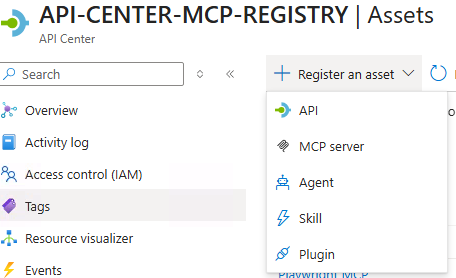
From there you fill in a Title, a Summary and Description, and optionally an icon and one or more use cases so people browsing the catalogue know what the server is actually for. If it’s a remote server, you add a Remote: a runtime URL plus the API Center environment it corresponds to (an API Management instance, a Container App, whatever’s actually hosting it).
If it’s a local server distributed as a package, you register it the same way but point at the package registry, name, version, and the runtime command used to launch it (npx, for example).
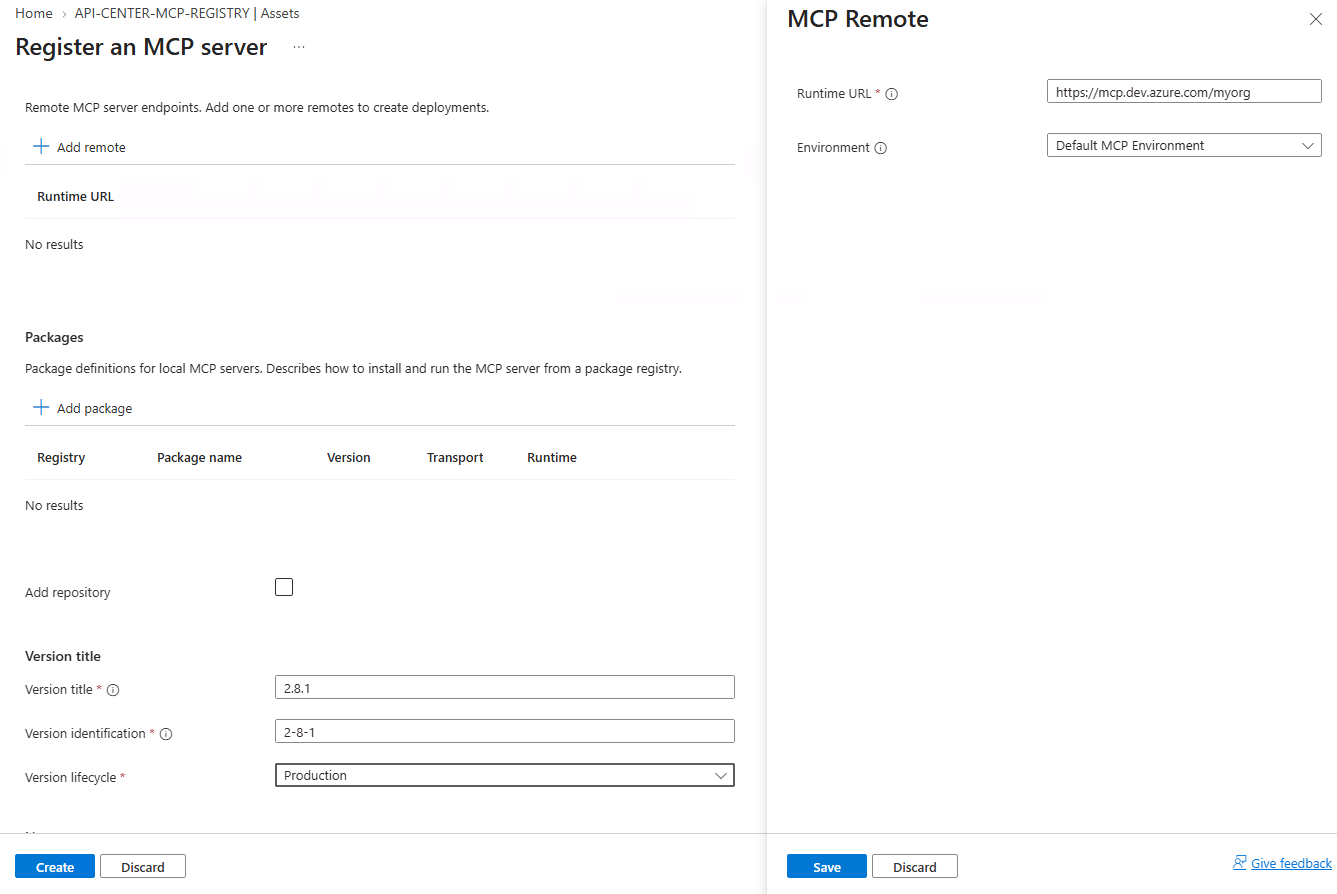
API Center automatically generates SSE and Streamable HTTP definitions for a registered remote server, so you’re not hand-writing OpenAPI-style descriptions for it. Worth knowing too: there’s a curated list of partner MCP servers under Discover > MCP (GitHub’s own server, Azure Logic Apps, and others), which you can register into your inventory in a couple of clicks rather than filling the form out from scratch.
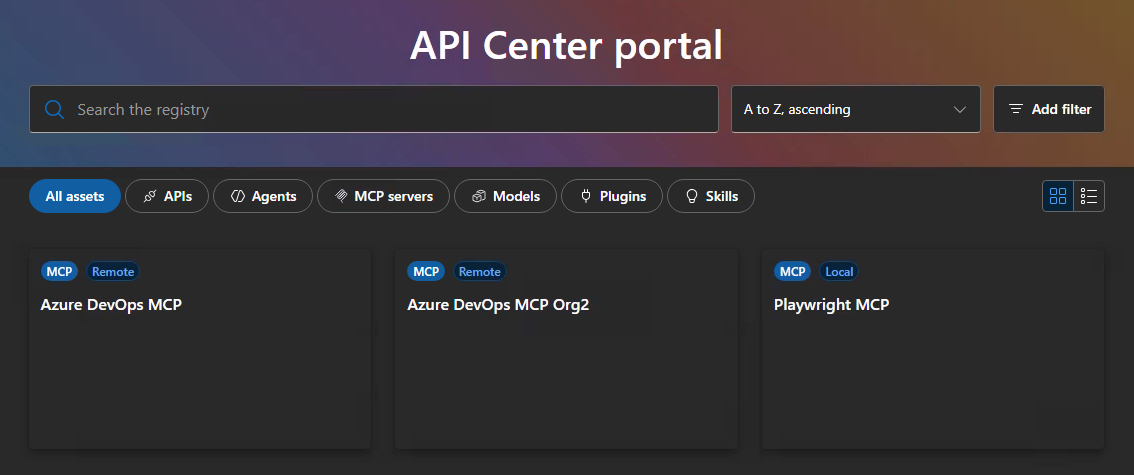
Once it’s registered, the API Center portal gives developers a browsable, filterable catalogue, complete with a built-in test console so they can try a server’s tools before wiring it into anything.
What the registry endpoint actually exposes
This is the part that ties registration to discovery. API Center exposes an MCP registry endpoint in the form:
https://<your-api-center-name>.data.<region>.azure-apicenter.ms/workspaces/default/v0.1/serversIt’s a standard discovery endpoint: name, URL, transport type. VS Code, GitHub Copilot, or any other MCP-registry-aware client can be pointed at it to pull the current list of approved servers.
You can extend it with custom metadata too. Map API Center’s own metadata properties into the _meta section of server responses if you want to tag servers with things like data sensitivity or an owning team, and have that surface to clients.
Making “approved” mean something
None of that stops anyone typing an unapproved MCP server URL into agent mode. A registry is only as good as the thing actually consulting it, and that’s where we need to set up the policy within GitHub Copilot.
At the organisation or enterprise level, under AI Controls > MCP, there’s a setting to restrict MCP access to registry servers. Point it at your API Center registry URL and set it to “Registry only” rather than “Allow all,” and Copilot, in VS Code, Visual Studio, CLI, or other clients, will only connect to servers it can resolve through that registry. A developer pasting in a server that isn’t registered just gets blocked. Not a warning, not a “this server is unverified” prompt they can click through, blocked.
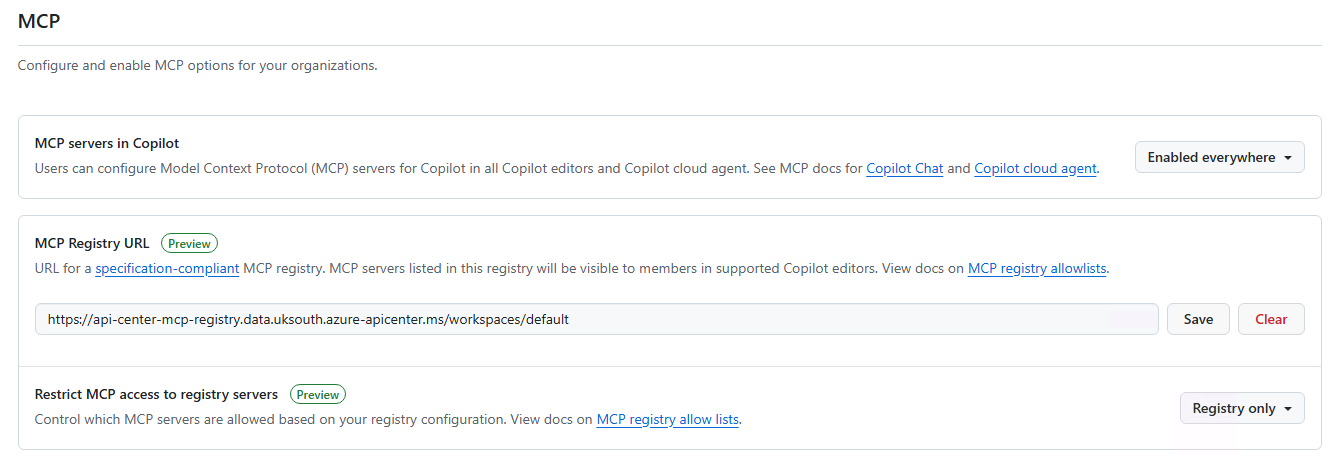
This is the actual point of getting this all up and running. A registry without this is just a nicer catalogue people can still ignore. A policy without a registry behind it means someone’s manually curating an allowlist by hand, and nobody does that reliably for long. It also means we can’t actually stop someone using a server they shouldn’t if all you’ve got is a list of “allowed” servers. Together, though, the risk we were trying to close, an agent connecting to code nobody’s looked at, actually closes. Whatever a server can see or do, it’s because someone with the authority to review it decided that was acceptable, not because a developer found it first.
A side effect worth mentioning, even though it wasn’t the reason we did this: because every approved server has to flow through one registry, you also end up with a single place to point a security review at, one endpoint to audit or lock down, rather than that visibility being scattered across however many developers’ machines. Useful, but downstream of the actual decision, not the driver of it.
Is this overkill?
You might be looking at this and thinking, “do I really need to do this?” Personally, I’d say yes. Whether you are a development team of 5 or 50, the risk is the same. One thing to really consider when you set this up: are you ready to maintain it? Do you have the processes in place to keep it up to date and to action requests from developers? If you can’t handle the changes and updates to the registry, then developers will find a way around it.
Conclusion
It’s very easy for us to look at an MCP and just go “everyone uses them, so let people at it” and forget about the registry. That’s the wrong way to look at this, especially in an enterprise environment. MCPs can come from anywhere, and anyone can create them. AI is a tool, a great one, but we must have guardrails in place to govern how it’s used.