You’ve got your new GitHub Enterprise (GHE) instance up and running, now you just go to add a couple of users and boom, people can access and they’re happy. Now, however, you’ve just created an immediate drift from reality. The answer? Provision your users from your Identity Provider (IdP) and keep the single source of truth.
Why provision users from an IdP rather than by hand
Firstly, why not do this manually? Well, it’s now a you problem. If you have the users syncing from your IdP, the responsibility for this is immediately taken away from a single person. Syncing our users from our IdP to GHE means that we can manage our users in one place, and have that reflected in GHE. This is a much more scalable approach than managing users manually.
Now we’ve agreed to do this, you want to create some enterprise teams and add users to them. Again, you can do this manually, go into the team and add some users. Again, this is a you problem. Instead, you can assign an IdP group to a GHE Enterprise Team, meaning that the membership is automatically synced from the IdP to GHE. The ownership of the memberships remains in the IdP where it can be managed by the JML process or similar.
This is a much more scalable approach than managing users manually and forms the foundations of all other parts of GHE administration.
How does this work?
The most important element of how this IdP sync works is SCIM 🔗. Briefly, SCIM is an industry standard for provisioning users and groups from an IdP to a third-party system. In our case we’re going to be using Microsoft Entra ID.
I won’t be doing a full walkthrough of the SCIM setup for GHE here, there is already a great Microsoft Doc for this 🔗 Once this has been setup, we have a few things and a new process of how to manage our users.
Entra view
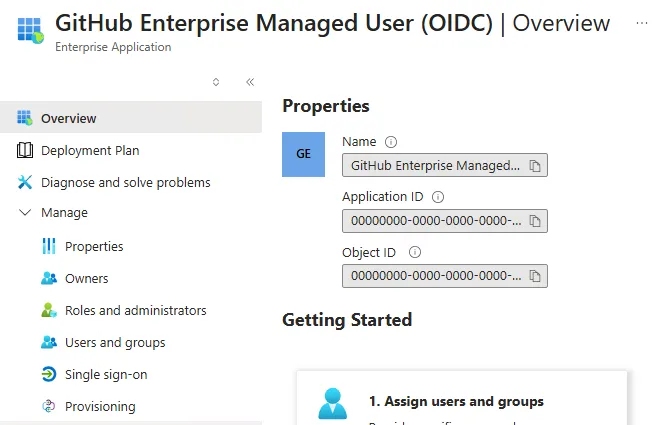
What we see in Entra is pretty straightforward. We have a new Enterprise App for our GHE instance. This is the key link in Entra to our instance, from here we manage both provisioning and user management.
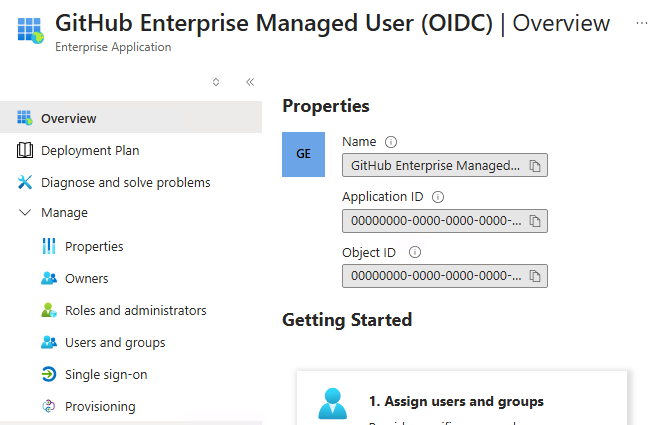
To add a user, we simply add a new user or group to the Enterprise App. It’s important to note that any groups we want to use for those Enterprise Teams, have to be assigned to the app here in Entra. Once they have been added to the enterprise app, you can see them on the GHE side:
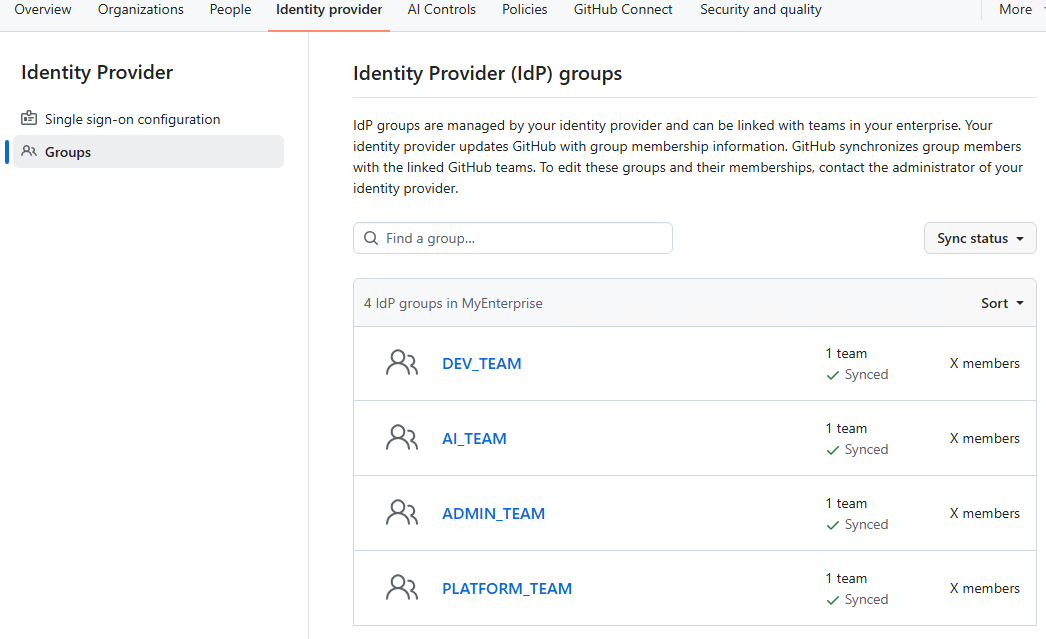 My advice, these two will mirror. Create the groups in Entra, assign the users to them, and then assign the groups to the Enterprise App.
Assigning enterprise teams
Once you’ve got users and groups synced into Entra, the next step is turning an IdP group into something GHE actually understands. An Enterprise Team.
This bit happens on the GHE side. Head to your Enterprise settings, then Teams, and create a new team. Give it a sensible name, ideally one that matches (or is at least recognisable as) the Entra group it’s going to represent. Future you will thank present you here.
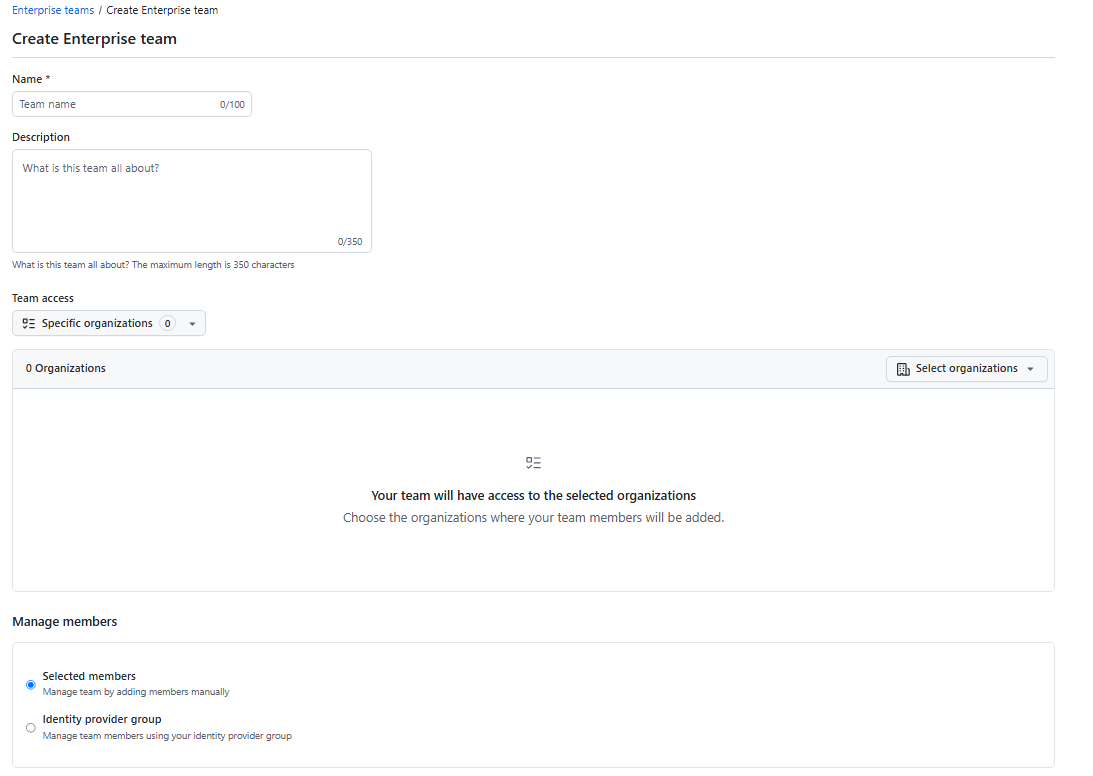
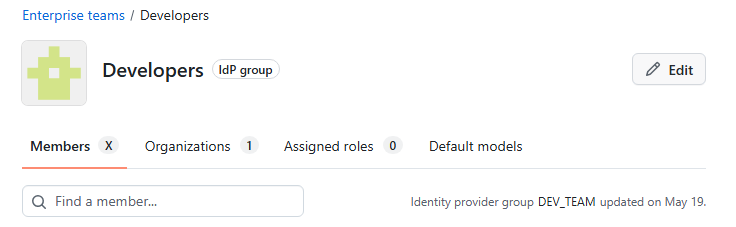
Once the team exists, you link it to the IdP group. This is where the actual sync happens. GHE periodically pulls membership from Entra and keeps the team populated for you. No more manually adding people. No more manually removing people. Just a team that’s actually up to date.
Does it actually work?
Trust, but verify. Head into the team you just created and check it’s actually pulling from the group, not just sitting there empty. The “IdP group” tag next to the team name confirms it’s linked, and the “updated on” date tells you it’s syncing, not just configured once and forgotten.
Worth knowing before you panic: this isn’t instant. Entra’s provisioning service runs on a cycle, and by default that’s every 40 minutes. So if you add someone to the group and immediately go looking for them in GHE, don’t be surprised when they’re not there yet. Give it time before assuming you’ve broken something.
Closing thought
Identity provisioning is the boring bit. Nobody writes home about it. But get it wrong, or skip it entirely, and you’ll be back here in six months untangling why half your enterprise teams are stale and nobody remembers who’s actually meant to have access to what.
Once your enterprise teams are populated and you trust them, the real question becomes what you actually do with them. That’s Part 2.